How to Permanently Delete Your X (Twitter) Account
Are you planning to deactivate your X (Twitter) account permanently and don’t know how to get it done? Here’s an article that’ll guide you on how to get it done. The whole process is straightforward and simple to follow.
There might be different reasons as to why you want to let go of your X account. It could be due to taking a break, a compromised account or you just want to start from afresh with the right username or niche of your choice. Whatever your reasons could be, getting your account off shouldn’t be hard.
If you’re planning to return to X later with a fresh start, you might find this article helpful as well: How to Increase Twitter Followers Fast.
Deleting a Twitter account is simple, but there are a few important steps you need to follow to make sure it’s done the right way. You might have seen some articles that didn’t go in detail, but this one is different. If you want to properly delete an X account permanently, read through the whole article for a better understanding on how it’s done.
Important Things to Know Before Deleting Your Account
Before you’d finally consider if your account should stay or not, it’s important you read through the following:
30-Day Deactivation Period
Twitter allows account data to stay for 30 days after deactivating an account. Note: Before deleting your account permanently, you’ll first need to deactivate it. If you don’t log back in, the account is deleted forever after that time.
App Uninstall ≠ Deletion
Uninstalling the X app from your phone doesn’t mean you’re deleting your account. You’ll need to deactivate your account the right way. If you uninstall the X app without that, your account will still remain active.
Download Your Data First
While this is an optional thing to do, you might consider it if you still want to have a copy of your tweets – photos and DMs before deleting your account permanently. To do that, go to Settings and Privacy > Your Account > Download an archive of your data.

Linked Apps & Services Will Be Gone
If you used your X account to log into other apps or games, make sure to change the login methods before deleting your account. Failure to do so will result in you losing access on those third-party apps and services you linked your X account with.
Steps to Delete Your X Account Permanently
After considering the warnings above and ready to remove your X account, follow the steps below.
1. Log in to Your X Account
Open x.com. on your web browser or use the mobile app for Android and iOS devices. Then sign in with your username and password or linked email (Google, Apple, Microsoft).
2. Go to Settings
If you’re on Desktop click on More (left-hand menu) > Settings and Support > Settings and Privacy. For mobile app users tap your profile icon > Settings and Support > Settings and Privacy.
3. Open Your Account Settings
Under the Settings and Privacy option, click on Your Account. You should see the option that says “Deactivate your account”, click on it.
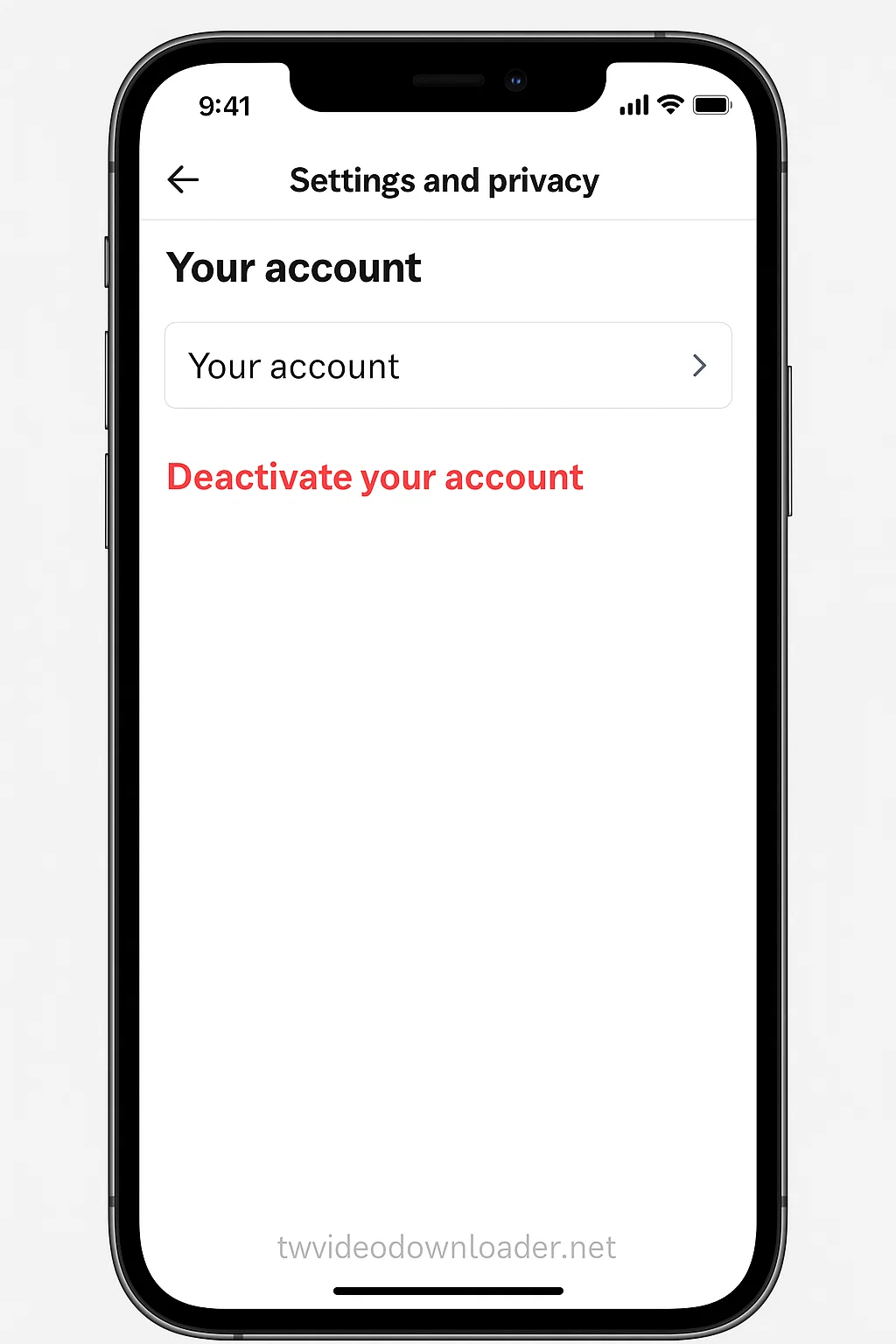
4. Review Deactivation Information
Before your account deletion process will begin, you’ll see the following notes below:
Deactivation lasts for 30 days.
If you don’t log in during this time, your account will be permanently deleted.
If you change your mind and log in within 30 days, your account will be reactivated.
5. Confirm Deactivation
After reading through the above notes, click on Deactivate. Enter your password to confirm the process. Once confirmed, your X account will be deactivated instantly and the countdown to have it deleted will begin instantly.

What Happens After Permanent Deletion?
Once your account has been permanently deleted from the X database, the following will happen:
Anything related to your profile, tweets, followers, and media will no longer be visible to you or anyone on X.
Your previous username will become available for someone else to claim.
X does not guarantee that every single copy of your tweets or content will be instantly wiped from backups or third-party services.

Conclusion
In conclusion, that’s all on how to permanently delete an X account for good. Anything done can’t be reversed after 30 days, so always be sure of what you want before going for it. Don’t forget to leave a comment below if you have any questions.

Claire Weston
Keep Learning
 Claire Weston
Best Twitter Marketing Tools to Grow Your Audience in 2026
 Claire Weston
Top 10 Funny Twitter (X) Accounts to Follow
 Claire Weston